Connect Codex to AI Assistant in JetBrains IDE
JetBrains IDEs (IntelliJ IDEA, WebStorm, PyCharm, etc.) include AI Assistant, which can work not only with cloud agents but also with ACP agents (Agent Communication Protocol). This makes it possible to connect Codex and use it as a full-featured AI agent right inside the IDE.
Step 1. Install Codex CLI
On macOS, the easiest option is Homebrew:
brew install codex
After installation, sign in:
codex login
Your browser will open — log in to your OpenAI account and confirm access.
Step 2. Install the ACP Adapter for Codex
JetBrains AI Assistant works with Codex through a dedicated ACP adapter.
Unfortunately, at the time of writing, the adapter is not available in Homebrew, so you need to install it manually.
Repository: https://github.com/zed-industries/codex-acp
Download the binary from the releases page for your platform, unpack it, and place it somewhere convenient, for example:
~/IdeaProjects/codex-acp
Step 3. Configure AI Assistant in JetBrains
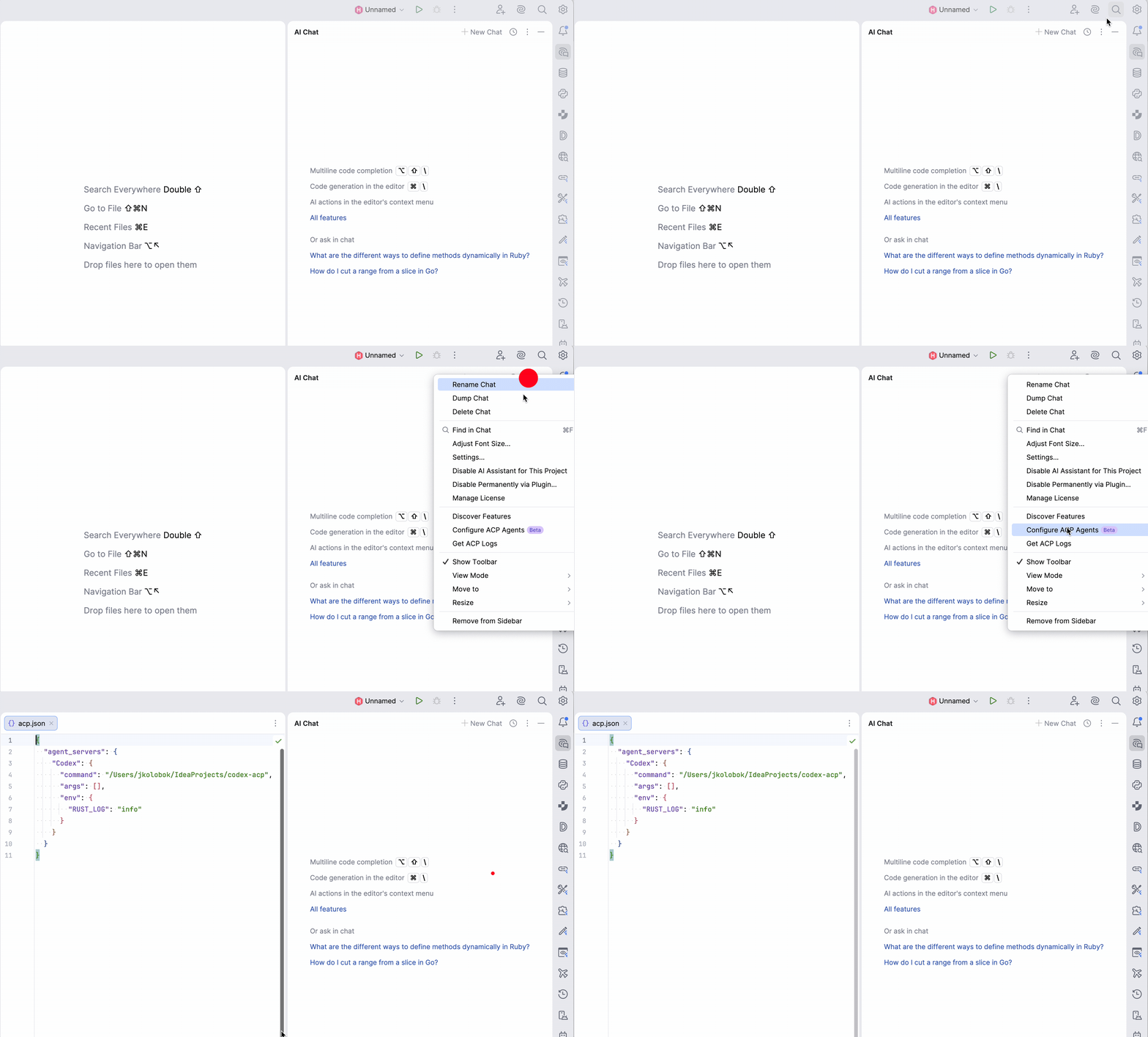
- Open the AI Assistant toolbar
- Click the three dots (⋯)
- Select Configure ACP Agents
- In the opened config, add a new agent with the following configuration:
{
  "agent_servers": {
    "Codex": {
      "command": "/Users/clericode/IdeaProjects/codex-acp",
      "args": [],
      "env": {
        "RUST_LOG": "info"
      }
    }
  }
}
Important:
- the path in
commandmust be absolute - it must point to the
codex-acpbinary
Step 4. Use Codex in the IDE
After that:
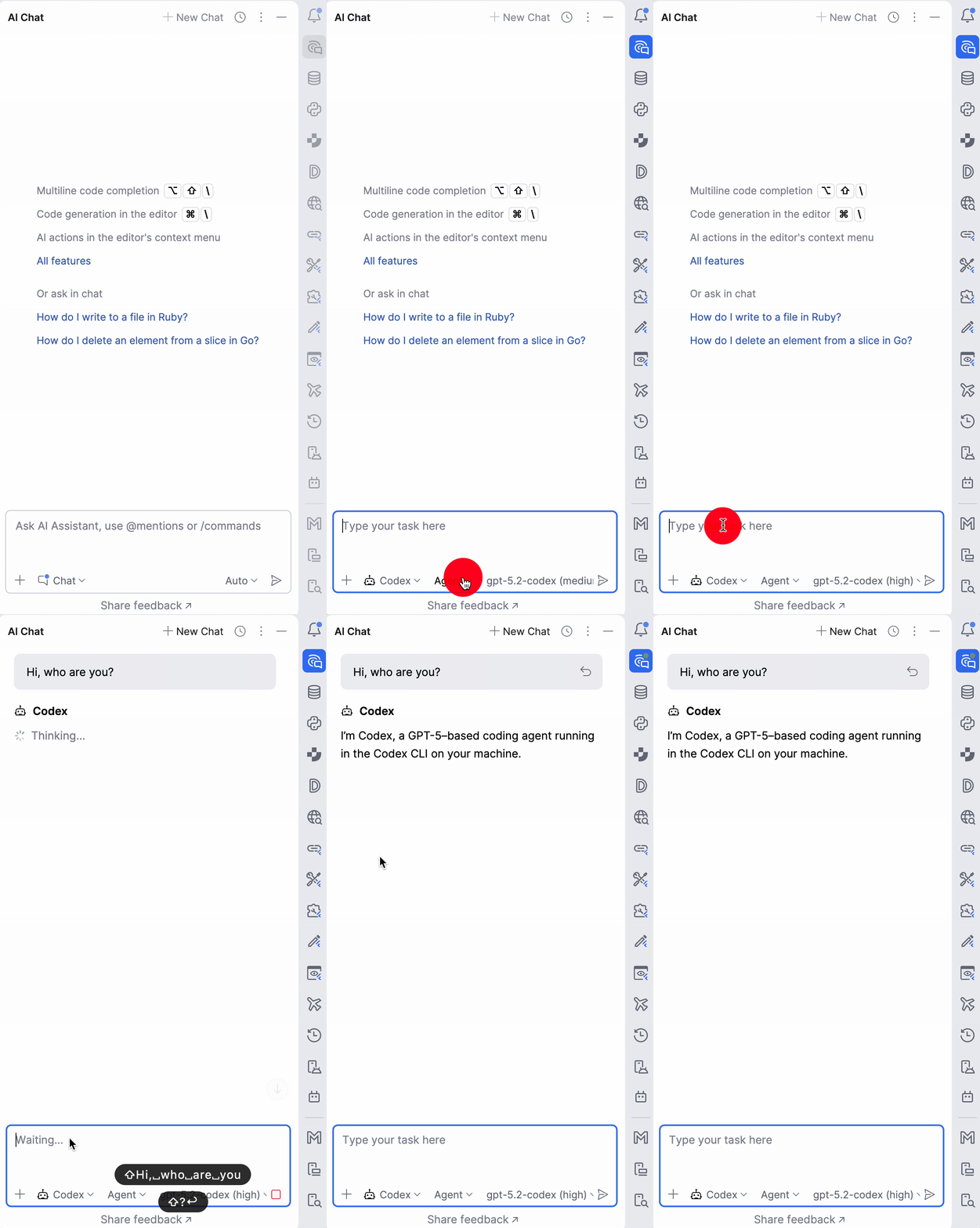
in the AI Chat tab, you can select Codex as the agent
you can choose:
a model
an operating mode:
- Read-only — read-only access
- Agent — access to the project
- Full access — full access to the entire computer
Choosing the Codex agent and mode
Different models vary in speed and token usage — it makes sense to pick the best option for your tasks.
What’s next
Now you can use Codex as a full-featured AI assistant right inside JetBrains IDE:
- analyze code and architecture, refactor, and more
- avoid switching to the browser
- avoid paying for separate AI credits if you already have a ChatGPT Plus subscription
Source: https://clericode.com